Workflows & Approvals
Purpose
The Workflows module is the engine behind all approval processes in QoopOne. It implements a Maker-Checker system where one staff member creates or initiates a request, and another (or multiple others) must approve it before the action is executed. This prevents unauthorised transactions and ensures accountability.
Who Can Access
- All roles (view their own pending approvals)
- Manager / Administrator (can approve or reject)
How to Open This Page
Operations → Workflows
Or click any Pending Approval item on the Dashboard.
Screen Overview
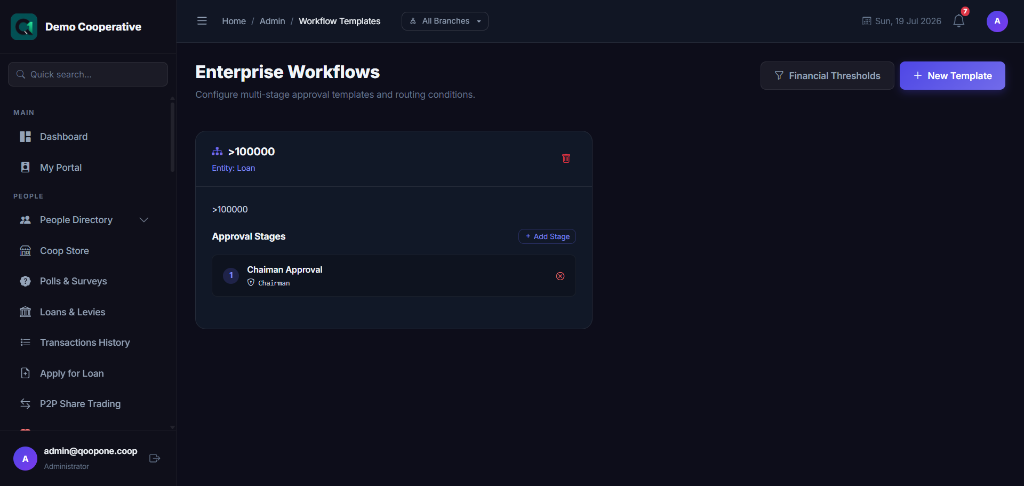
The Workflows list shows all pending and completed workflow requests, grouped by type (Loan, Withdrawal, Procurement, etc.). Each entry shows the requestor, date, current stage, and available actions.
What Uses Workflows?
| Action | Workflow Trigger |
|---|---|
| Loan application | When submitted by loan officer |
| Early withdrawal (Fixed Deposit / Target) | When member requests liquidation |
| Large savings withdrawal | If approval required is enabled |
| Procurement requisitions | When submitted by any staff |
| Purchase orders | When requisition is approved |
| Dividend declarations | When declared by admin |
| Welfare grant applications | When submitted by member |
How Workflows Work
flowchart TD
    A[Staff / Member creates request] --> B[System creates workflow]
    B --> C[Stage 1 reviewer notified]
    C --> D{Reviewer decision}
    D -->|Approve| E{More stages?}
    D -->|Reject| F[Request rejected, originator notified]
    E -->|Yes| G[Next reviewer notified]
    E -->|No| H[Request executed automatically]
    G --> D
Approving a Request
- Go to Operations → Workflows (or click the item from the Dashboard).
- Click on the request you want to review.
- Read the full request details and any attached notes.
- Click Approve or Reject.
- Add Review Notes (required for rejections, recommended for approvals).
- Click Confirm.
Workflow Stages
Your cooperative can configure multi-stage approvals. For example, a loan may require:
- Stage 1: Loan Officer review
- Stage 2: Branch Manager approval
- Stage 3: Head Office final approval
Each stage is configured in the Workflow Administration section. Contact your administrator to change approval stages.
Table Columns
| Column | Description |
|---|---|
| Ref | Unique workflow reference number |
| Type | What is being approved (Loan, Withdrawal, etc.) |
| Requested By | Staff or member who created the request |
| Amount | Financial amount involved (if applicable) |
| Stage | Current approval stage |
| Status | Pending, Approved, Rejected |
| Date | When the request was submitted |
Filters
| Filter | Description |
|---|---|
| Type | Filter by action type (Loan, Withdrawal, etc.) |
| Status | Pending, Approved, Rejected, All |
| Date Range | Filter by submission date |
| Requested By | Filter by the person who made the request |
Tips
Tip
Check the Workflows list every morning. Unprocessed approvals delay member services.
Warning
You cannot approve requests that you submitted yourself. This is an intentional control to prevent self-approval fraud.
Frequently Asked Questions
Q: I submitted a request but it's not appearing in the approvals list.
A: Only the designated approver for the current stage can see the request in their queue. Your administrator may need to check the workflow stage configuration.
Q: Can I re-open a rejected request?
A: Rejected requests cannot be re-opened. You must create a new request.
Q: How do I know when my request has been approved?
A: You receive a notification via SMS and/or email when a workflow decision is made.