Procurement
Purpose
The Procurement module manages the full purchasing process — from initial purchase requests through vendor selection, purchase orders, goods receipt, invoice processing, and payment. It ensures all purchases are properly authorised and documented.
Who Can Access
- Administrator
- Procurement Officer
- Manager (approval)
- Accountant (payment)
How to Open This Page
Treasury & Control → Procurement
Procurement Process Overview
flowchart LR
    A[Create Requisition] --> B[Requisition Approved]
    B --> C[Create RFQ - Request for Quotation]
    C --> D[Vendors Submit Quotations]
    D --> E[Evaluate Quotations]
    E --> F[Create Purchase Order]
    F --> G[Receive Goods - GRN]
    G --> H[Receive Invoice]
    H --> I[Process Payment]
Requisitions Dashboard
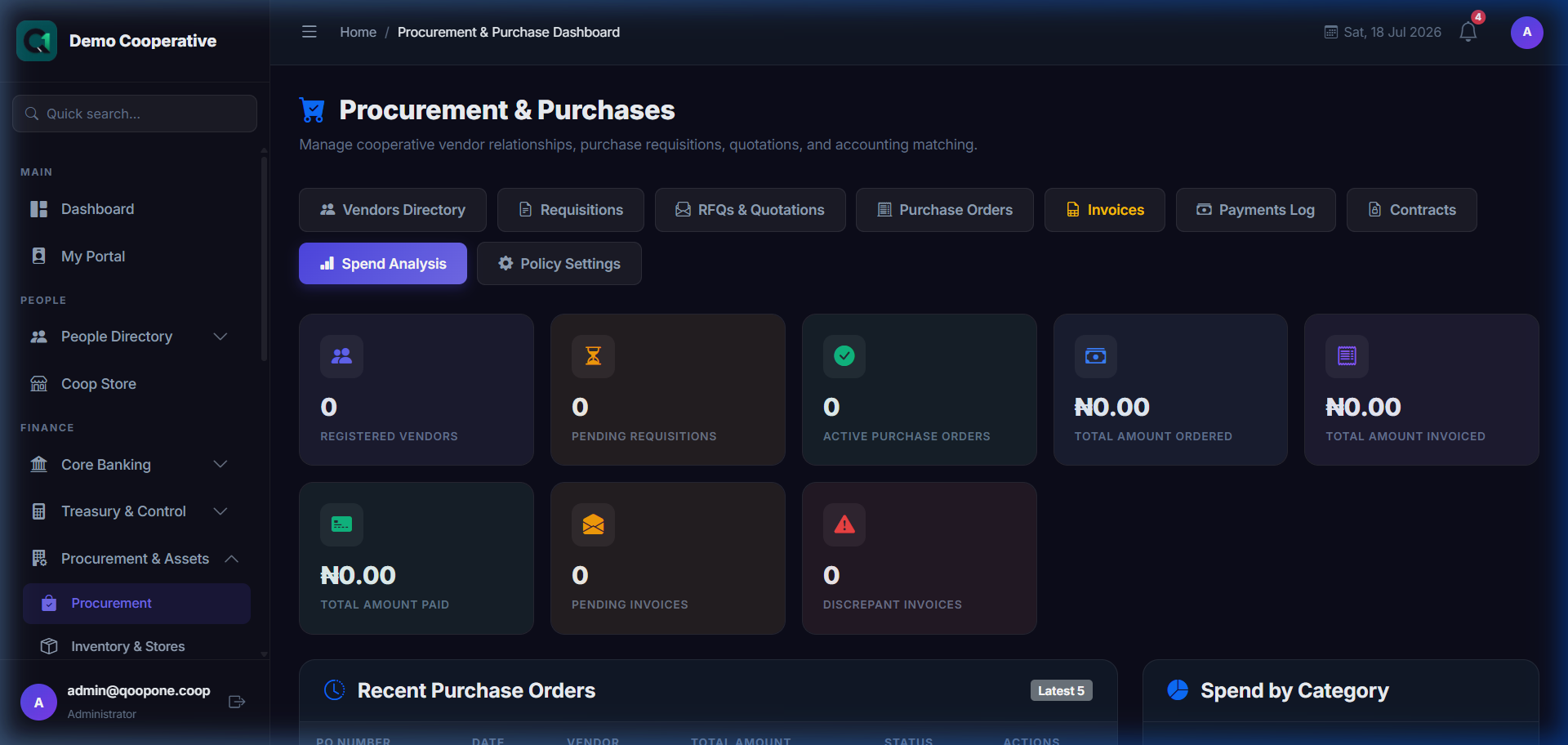
👉 HOW TO POST AND APPROVE REQUISITIONS (Vivid Guide)
- Go to Procurement & Assets -> Requisitions in the sidebar.
- Submit Requisition: Click "New Requisition", enter the item name, description, estimated cost, and upload quotes. Click save.
- Approve Requisition: As a Checker/Admin, open a pending requisition, review the details/quotes, and click "Approve" or "Reject" to progress the workflow.
Requisitions
A Requisition is a formal internal request to purchase goods or services.
Creating a Requisition
- Go to Treasury → Procurement → Requisitions.
- Click New Requisition.
- Enter the Item(s) needed (description, quantity, estimated unit price).
- Enter the Purpose — why are these items needed?
- Set the Required By Date.
- Click Submit.
The requisition enters the approval workflow.
Vendors
Vendors are the suppliers the cooperative buys from.
Adding a Vendor
- Go to Treasury → Procurement → Vendors.
- Click Add Vendor.
- Fill in:
- Vendor Name
- Contact Person, Phone, Email
- Bank Details (for payments)
- Product/Service Category
- Click Save.
Request for Quotation (RFQ)
After a requisition is approved, an RFQ is sent to one or more vendors to collect price quotes.
Creating an RFQ
- Go to Procurement → RFQs.
- Click New RFQ.
- Link the approved Requisition.
- Select the Vendors to invite.
- Set the Quotation Deadline.
- Click Send RFQ.
Evaluating Quotations
When vendors submit their quotes:
- Go to Procurement → RFQs → (the RFQ).
- Click Evaluate Quotations.
- Compare vendor prices, quality notes, and delivery times.
- Select the Winning Vendor.
- Click Award to Vendor.
Purchase Orders (POs)
After awarding the quotation, create a formal Purchase Order:
- The system can auto-create a PO from the awarded RFQ, or you can create one manually.
- Go to Procurement → Purchase Orders → New PO.
- Confirm the vendor, items, quantities, and prices.
- Click Confirm PO.
The vendor receives a copy of the PO.
Goods Received Note (GRN)
When goods arrive:
- Go to Procurement → GRNs → New GRN.
- Link the Purchase Order.
- Enter the items actually received and the quantities.
- Note any damaged or missing items.
- Click Save GRN.
Invoice Processing
When the vendor sends an invoice:
- Go to Procurement → Invoices → New Invoice.
- Link the GRN and Purchase Order.
- Enter the invoice details.
- Click Save Invoice.
Payment
After the invoice is verified:
- Go to Procurement → Payments → New Payment.
- Link the invoice.
- Enter the payment date and amount.
- Click Process Payment.
The payment is posted to the accounting ledger automatically.
Vendor Contracts
For recurring suppliers, create a formal contract:
- Go to Procurement → Contracts.
- Click New Contract.
- Enter the vendor, contract period, and terms.
- Click Save Contract.
Tips
Tip
Always collect at least three quotations before awarding an RFQ. This demonstrates due diligence and gets the best price.
Warning
Never create a Purchase Order for goods not covered by an approved Requisition. This bypasses financial controls.
Common Mistakes
- Creating a PO without a corresponding GRN — always document receipt of goods.
- Paying an invoice before the GRN is confirmed — this risks paying for goods not yet received.