Data Import & Export
Purpose
The Data Import module allows administrators to bulk-upload data into QoopOne from Excel or CSV files — useful when setting up a new cooperative or migrating from another system. The Data Export module allows you to download data from QoopOne for use in other tools (e.g. Excel, accounting software).
Who Can Access
| Role | Access Level |
|---|---|
| Administrator | Full access to import and export |
How to Open This Page
- Import: Sidebar → Admin → Data Import
- Export: Sidebar → Admin → Data Export or via individual report Export buttons
Data Import
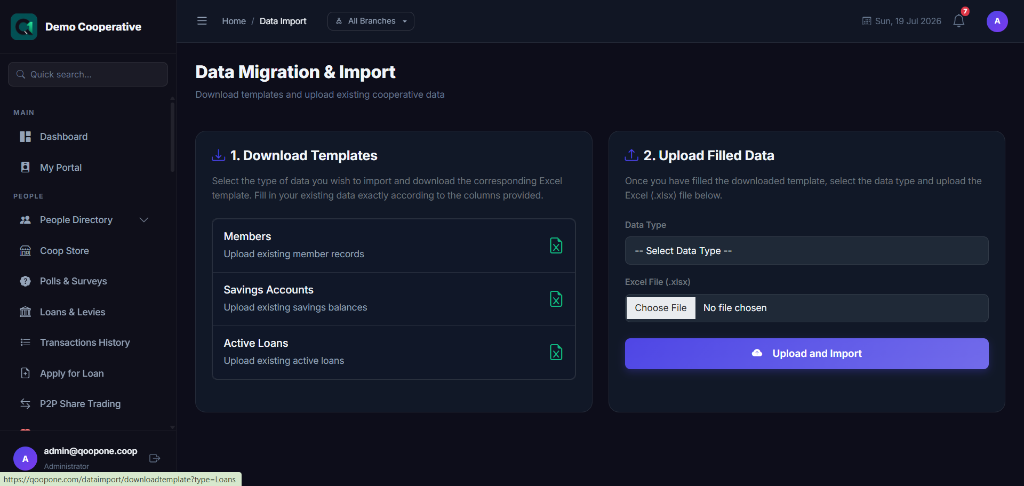
What Can Be Imported
| Data Type | Description |
|---|---|
| Members | Bulk register members from a spreadsheet |
| Savings Transactions | Import opening balances or historical transactions |
| Share Capital | Import historical share capital contributions |
| Loan Balances | Import existing loans from a previous system |
How to Import Members
- Go to Admin → Data Import.
- Click Download Template for Members.
- Open the Excel template and fill in member details — one member per row.
- Save the file.
- Back in QoopOne, click Choose File and select your filled template.
- Click Upload & Preview.
- Review the preview to check for errors.
- Click Confirm Import.
Import Template Columns (Members)
| Column | Required | Description |
|---|---|---|
| FirstName | Yes | Member's first name |
| LastName | Yes | Member's surname |
| Yes | Unique email address | |
| Phone | No | Phone number |
| BVN | No | 11-digit BVN |
| NIN | No | 11-digit NIN |
| Branch | Yes | Branch code (must match an existing branch) |
| ShareCapital | No | Initial share capital amount |
| JoinedOn | No | Date of membership (format: YYYY-MM-DD) |
Validate Before Importing
Always preview the import before confirming. Errors in the spreadsheet (e.g. duplicate emails, invalid branch codes) will be shown in the preview stage.
Data Export
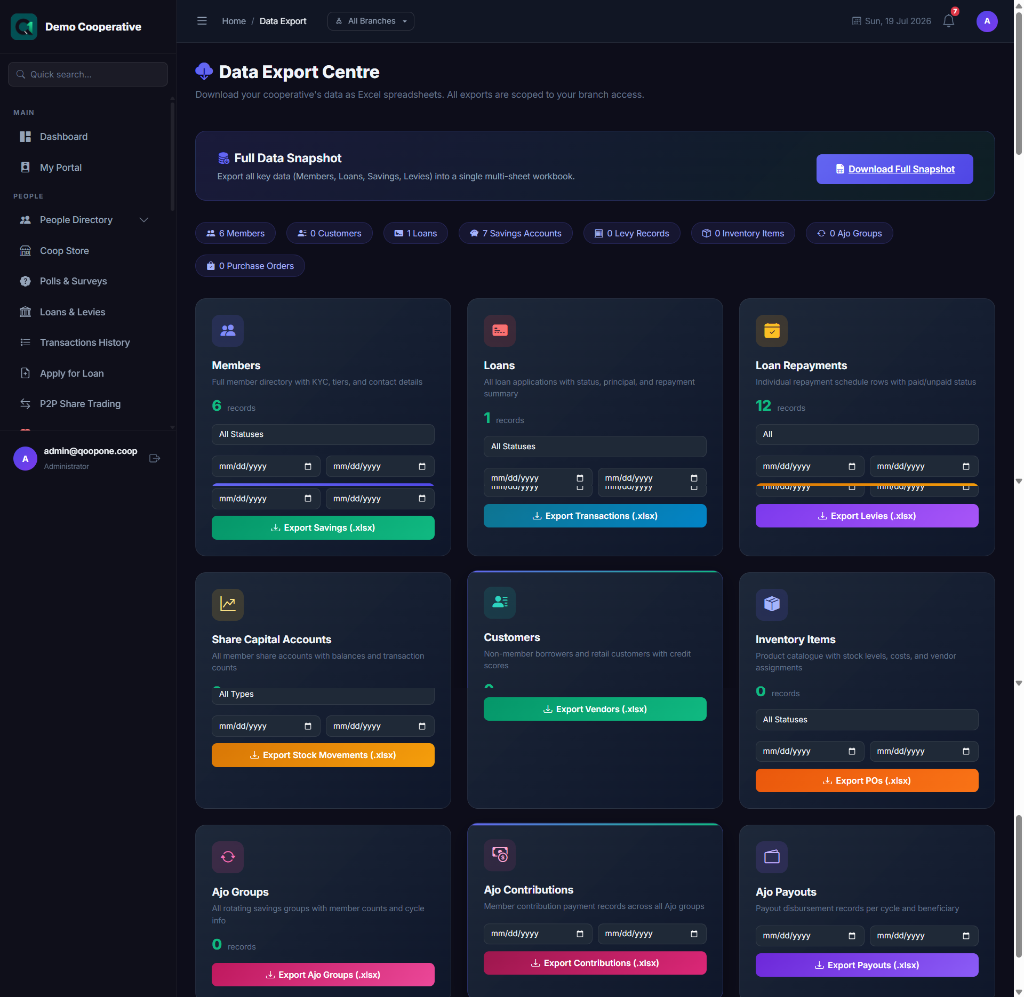
What Can Be Exported
| Data Type | Format Available |
|---|---|
| Members List | Excel, CSV |
| Savings Accounts | Excel, CSV |
| Loan Portfolio | Excel, CSV |
| Transaction History | Excel, CSV |
| Accounting Journals | Excel, CSV |
| Financial Reports | PDF, Excel |
How to Export Data
- Go to Admin → Data Export.
- Select the Data Type you want to export.
- Set any filters (date range, branch, status).
- Click Export.
- The file downloads to your computer automatically.
Tips
Regular Backups
Export your full member list and transaction history at least once a month as a backup.
Use the Template
Always use the official download template for imports. Using a different format may cause errors.