Members
Purpose
The Members module is used to register, manage, and track all cooperative members. Every person who joins the cooperative must be registered here first. Once registered, a member can open savings accounts, apply for loans, receive dividends, and use other cooperative services.
Who Can Access
| Role | Access Level |
|---|---|
| Administrator | Full access — can register, edit, approve, and deactivate members |
| Committee Member | Can register and approve members |
| Loan Officer | Can view member profiles |
| Account Officer | Can view member profiles |
| Teller | Can view member profiles |
| Auditor | View-only access |
How to Open This Page
Sidebar → Members
Members List
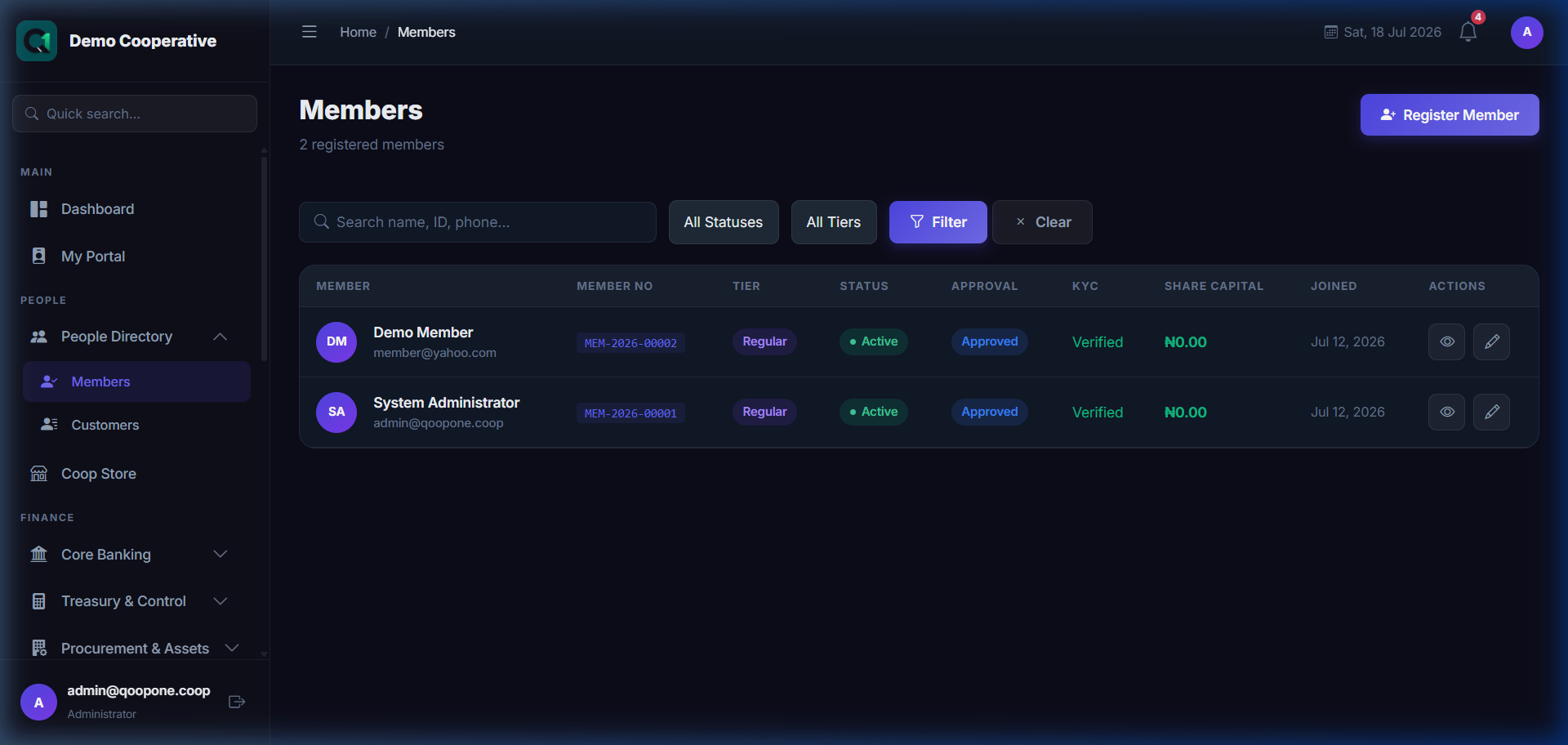
The Members list shows all registered cooperative members in a searchable table.
Filters
| Filter | Description |
|---|---|
| Search | Type a member's name, member number, or phone number |
| Status | Filter by Active, Pending, Suspended, or Exited |
| Tier | Filter by membership tier (e.g. Bronze, Silver, Gold) |
Buttons
| Button | What It Does |
|---|---|
| Register Member | Opens the form to add a new member |
| Filter | Applies your selected search criteria |
| Clear | Removes all filters and shows all members |
Table Columns
| Column | Description |
|---|---|
| Member | Member's full name and phone/email |
| Member No | Unique membership number auto-generated by the system |
| Tier | Membership tier (e.g. Regular, Gold) |
| Status | Current status: Active, Pending, Suspended, or Exited |
| Approval | Whether the membership has been approved, is pending, or was rejected |
| KYC | Identity verification status — Verified (✓ green) or Pending (⚠ amber) |
| Share Capital | Amount of share capital the member has contributed |
| Joined | Date the member registered |
| Actions | 👁 View details · ✏️ Edit |
Register a New Member
Sidebar → Members → Register Member
👉 HOW TO REGISTER A NEW MEMBER (Vivid Guide)
- Go to the left menu (sidebar) and click People Directory -> Members.
- Look for the blue button at the top right corner that says "Register Member" and click it.
- Fill in the boxes: You MUST enter First Name, Last Name, Email, and Password. Other details are optional.
- Verify Bank Account: If you select a bank and enter the account number, wait for the green success message showing the member's verified name before clicking register.
- Click the green button at the bottom of the page to save.
Field Guide
Personal Information
| Field | Required | Description | Example |
|---|---|---|---|
| First Name | Yes | Member's first (given) name | Adaeze |
| Last Name | Yes | Member's surname / family name | Okonkwo |
| Middle Name | No | Optional middle name | Nneka |
| Phone Number | No | Member's mobile phone number | +2348012345678 |
| Email Address | Yes | Used as the member's login username for the self-service portal | adaeze@email.com |
| Initial Password | Yes | A temporary password for the member's portal account. The member should change this on first login. | Pass@1234 |
| Confirm Password | Yes | Re-enter the same password to confirm it | Pass@1234 |
| Date of Birth | No | Member's date of birth | 15/03/1985 |
| BVN | No | Bank Verification Number — 11 digits | 12345678901 |
| NIN | No | National Identification Number — 11 digits | 98765432101 |
| Occupation | No | Member's job or trade | Trader |
| Gender | No | Male or Female | Female |
| State of Origin | No | State where the member originates from | Enugu |
| LGA of Origin | No | Local Government Area of origin | Nsukka |
Address Details
| Field | Required | Description | Example |
|---|---|---|---|
| Address Line 1 | No | Street address | No. 5 Main Street |
| Address Line 2 | No | Additional address detail | Block B, Flat 3 |
| State of Residence | No | State where the member currently lives | Lagos |
| LGA of Residence | No | Local Government Area of current residence | Ikeja |
| Zip Code | No | Postal code | 100001 |
| Country | No | Country of residence | Nigeria |
Next of Kin
| Field | Required | Description | Example |
|---|---|---|---|
| Name | No | Full name of next of kin | Emeka Okonkwo |
| Phone | No | Next of kin's phone number | +2348099887766 |
| Relationship | No | Relationship to member | Spouse |
KYC Documents
| Field | Required | Description | Example |
|---|---|---|---|
| KYC Document | No | Upload a government-issued ID, passport, or utility bill. Accepted: JPG, PNG, PDF (max 5 MB) | National ID Card |
| Passport Photo | No | Clear face photo of the member. Accepted: JPG, PNG | Member's photo |
External Bank Account
| Field | Required | Description | Example |
|---|---|---|---|
| Select Bank | No | Choose the member's bank from the dropdown | Access Bank |
| Account Number | No | 10-digit NUBAN account number. The system will auto-verify the account name. | 0123456789 |
| Account Name | No | Auto-filled by the system after verification. Do not type this manually. | OKONKWO ADAEZE |
Membership Settings
| Field | Required | Description | Example |
|---|---|---|---|
| Assigned Branch | Yes | The branch the member belongs to | Head Office |
| Membership Tier | No | Tier level (if your cooperative uses tiers) | Regular |
| Initial Share Capital | No | Amount contributed as share capital at registration | ₦5,000 |
Buttons
| Button | What It Does |
|---|---|
| Register Member | Saves the form and creates the member record. The member's status will be Pending until approved. |
| Cancel | Discards the form and returns to the Members list |
Step-by-Step: Register a New Member
- Go to Members in the sidebar.
- Click Register Member (blue button, top right).
- Fill in the First Name, Last Name, and Email Address (required).
- Enter a temporary Password and confirm it.
- Add optional details: phone, date of birth, BVN, NIN, address.
- Fill in the Next of Kin details.
- Upload a KYC Document (national ID or passport) and Passport Photo if available.
- Enter the member's External Bank details if they will receive electronic transfers.
- Select the Assigned Branch.
- Enter an Initial Share Capital amount if applicable.
- Click Register Member.
- The member is now created with Pending status and awaits approval.
Member Details Page
Click the 👁 View icon next to any member to open their full profile.
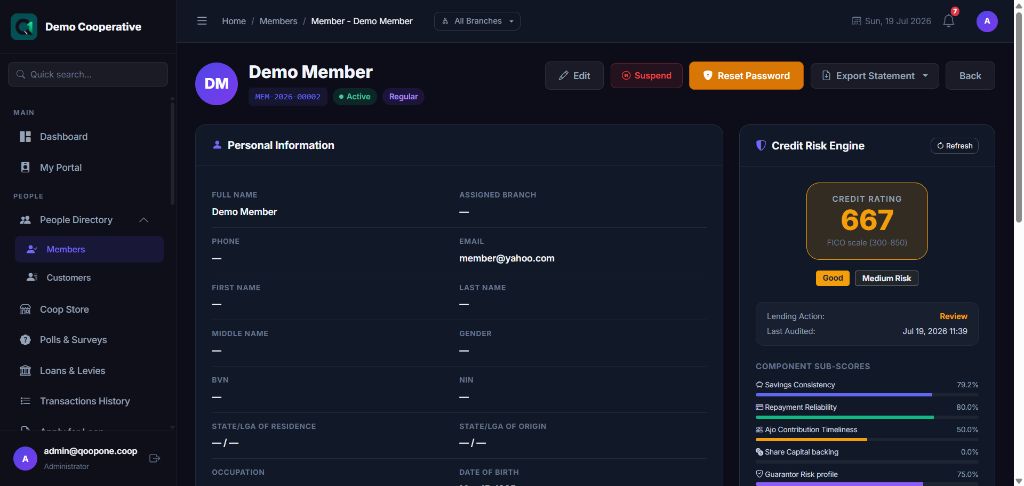
The details page shows all member information grouped into sections:
- Profile — Photo, name, contact details
- Savings Accounts — All savings accounts linked to this member
- Loans — Loan history and current loans
- Share Capital — Share capital transactions
- KYC Documents — Uploaded identity documents
- Audit Trail — History of changes made to this record
Actions on the Details Page
| Button | What It Does |
|---|---|
| Approve | Activates the membership (for Admins and Committee Members) |
| Reject | Rejects the membership application |
| Suspend | Temporarily blocks the member from accessing services |
| Reinstate | Re-activates a suspended member |
| Edit | Opens the edit form to update member information |
| Mark as Exited | Records that the member has left the cooperative |
| Verify KYC | Marks the member's identity documents as verified |
| Prints the member profile |
Editing a Member
- Open the member's details page.
- Click Edit.
- Update the required fields.
- Click Save Changes.
Tips
Auto-generated Member Number
You do not need to enter a member number. The system generates it automatically after registration.
Bank Account Verification
When you enter the member's bank account number and select a bank, the system automatically looks up the account name from the bank. Wait for the green "Account name verified" message before saving.
Pending Status
New members start as Pending. They cannot access services until an Administrator or Committee Member approves them.
Common Mistakes
| Mistake | How to Avoid |
|---|---|
| Entering a wrong email address | Double-check the email before saving — this is used as the login username |
| Saving without uploading KYC documents | Upload documents when registering to avoid delays in KYC approval |
| Entering a duplicate email | Each member must have a unique email address |
| Forgetting to assign a branch | The Branch field is required |
Frequently Asked Questions
Q: Can a member log into the system?
A: Yes. Members can log into the self-service portal using their email and the initial password set during registration.
Q: What happens after I click Register Member?
A: The member record is created with Pending status. An administrator or committee member must then approve the membership before the member can access services.
Q: Can I register a member without an email address?
A: No. The email address is required because it serves as the member's username for the portal.
Q: What is BVN/NIN?
A: BVN (Bank Verification Number) and NIN (National Identification Number) are government-issued identity numbers in Nigeria used to verify a person's identity.
Q: Can I bulk import members?
A: Yes. Go to Admin → Data Import to upload members from a spreadsheet. See Data Import / Export.