Ajo (Thrift / Rotating Savings Groups)
Purpose
The Ajo module manages rotating savings and credit associations (ROSCA) — also called Esusu, Adashe, or Contribution Groups — where a group of members each contribute a fixed amount regularly, and one member receives the total pool each round. QoopOne tracks groups, contributions, rotation schedules, and payouts automatically.
Who Can Access
| Role | Access Level |
|---|---|
| Administrator | Full access |
| Account Officer | Can manage groups and record contributions |
| Teller | Can record contributions |
| Auditor | View-only |
| Member | Can view their group and schedule on the portal |
How to Open This Page
Sidebar → Ajo
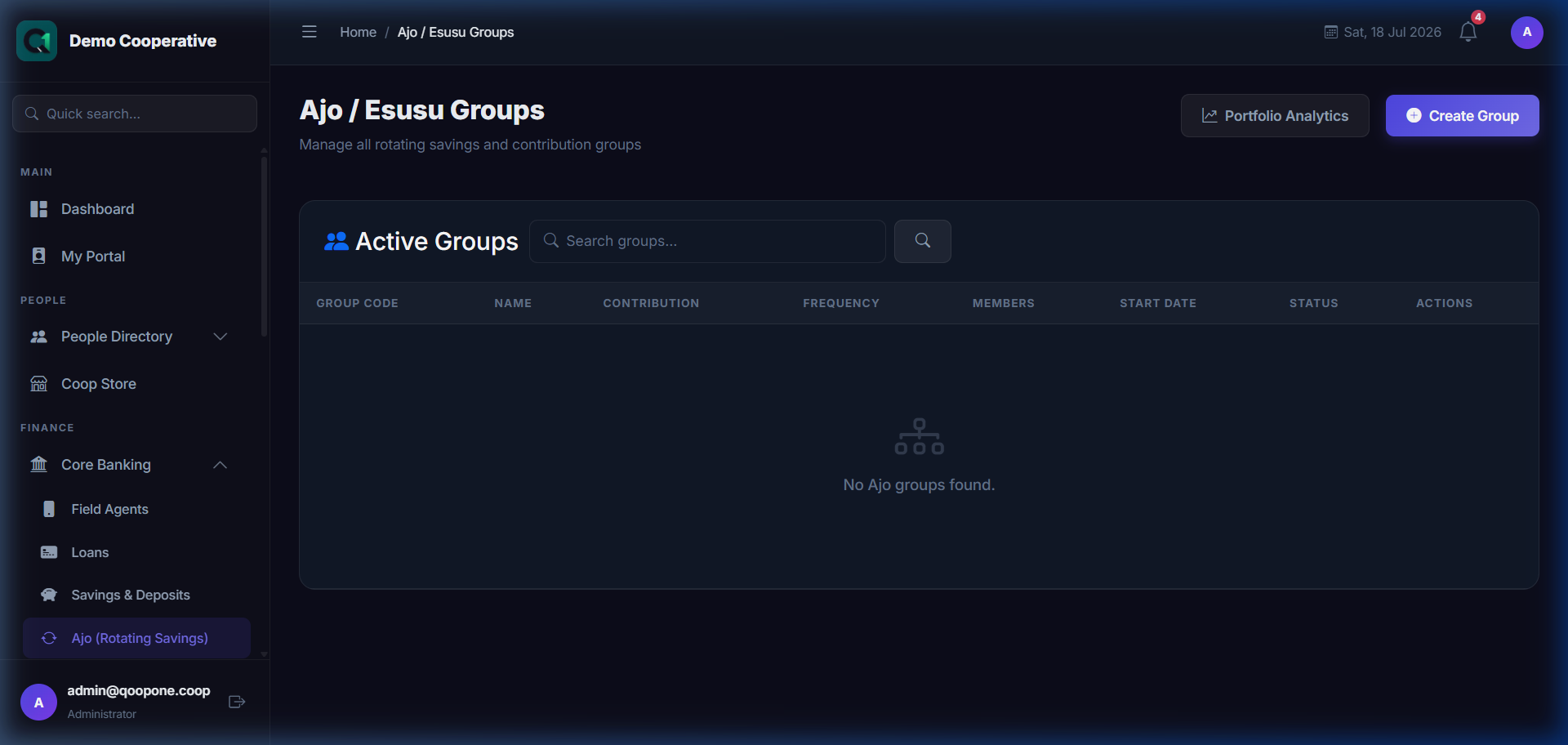
Ajo Groups List
👉 HOW TO MANAGE AJO GROUPS (Vivid Guide)
- Start a new Ajo Group: Go to Core Banking -> Ajo Groups, click "Create Ajo Group", enter group name, contribution amount, cycle frequency, and click save.
- Add member to group: Inside the Ajo Group details page, click "Add Member", search for the member, assign their slot order number, and click add.
- Record contribution payment: Go to Post Contribution, select member name, enter payment details, and click save.
Shows all active and past Ajo groups.
| Column | Description |
|---|---|
| Group Name | Name of the thrift group |
| Members | Number of participants |
| Contribution Amount | How much each member contributes per round |
| Frequency | Weekly, Monthly, etc. |
| Current Round | Which member is receiving the pool this round |
| Status | Active, Completed, Paused |
Creating an Ajo Group
- Click Create Group.
- Fill in:
| Field | Required | Description | Example |
|---|---|---|---|
| Group Name | Yes | Name of the group | Office Ladies Group 2026 |
| Contribution Amount | Yes | Fixed amount each member contributes per round | ₦10,000 |
| Frequency | Yes | How often contributions are collected | Monthly |
| Start Date | Yes | When the first round begins | 01/08/2026 |
| Description | No | Additional notes | 25 members, monthly payout |
- Click Create Group.
Adding Members to a Group
After creating the group:
- Open the group details.
- Click Add Member.
- Search and select the cooperative member.
- Assign their position (which round they will receive the payout).
The system creates the rotation schedule automatically based on the order members are added.
Recording Contributions
When members make their monthly contribution:
- Open the Ajo group.
- Click Collect Contribution.
- Select the member(s) making payment.
- Enter the amount and date.
- Select the payment method.
- Click Save.
Recording a Payout
When it is a member's turn to receive the pool:
- Open the Ajo group.
- Find the current round.
- Click Create Payout.
- Confirm the receiving member and amount.
- Click Save Payout.
Group Analytics
Sidebar → Ajo → (open a group) → Analytics
Shows: - Total collected so far - Remaining rounds - Members yet to receive their payout - Contribution compliance rate (who is paying on time)
Adding a Guarantor
Sidebar → Ajo → (open a group) → Add Guarantor
Some Ajo groups require members to have a guarantor to minimise default risk. Add a guarantor here by selecting the guarantor member.
Tips
Order Matters
The rotation order determines who receives the pool first. Assign positions carefully when adding members, or let members choose their preferred position.
Track Late Payers
Use the Analytics page to identify members who consistently miss contributions. Address late payments before they affect the group's payout cycle.
Common Mistakes
| Mistake | How to Avoid |
|---|---|
| Assigning the same position to two members | The system prevents duplicates — each position can only be assigned once |
| Recording a contribution to the wrong round | Always verify the current round before recording |
Frequently Asked Questions
Q: What happens if a member stops contributing?
A: This must be handled according to your cooperative's Ajo rules. You may need to pause the group, exclude the member, or find a replacement.
Q: Can the contribution amount change mid-cycle?
A: No. The contribution amount is fixed for the entire cycle. If it needs to change, close the current group and create a new one.